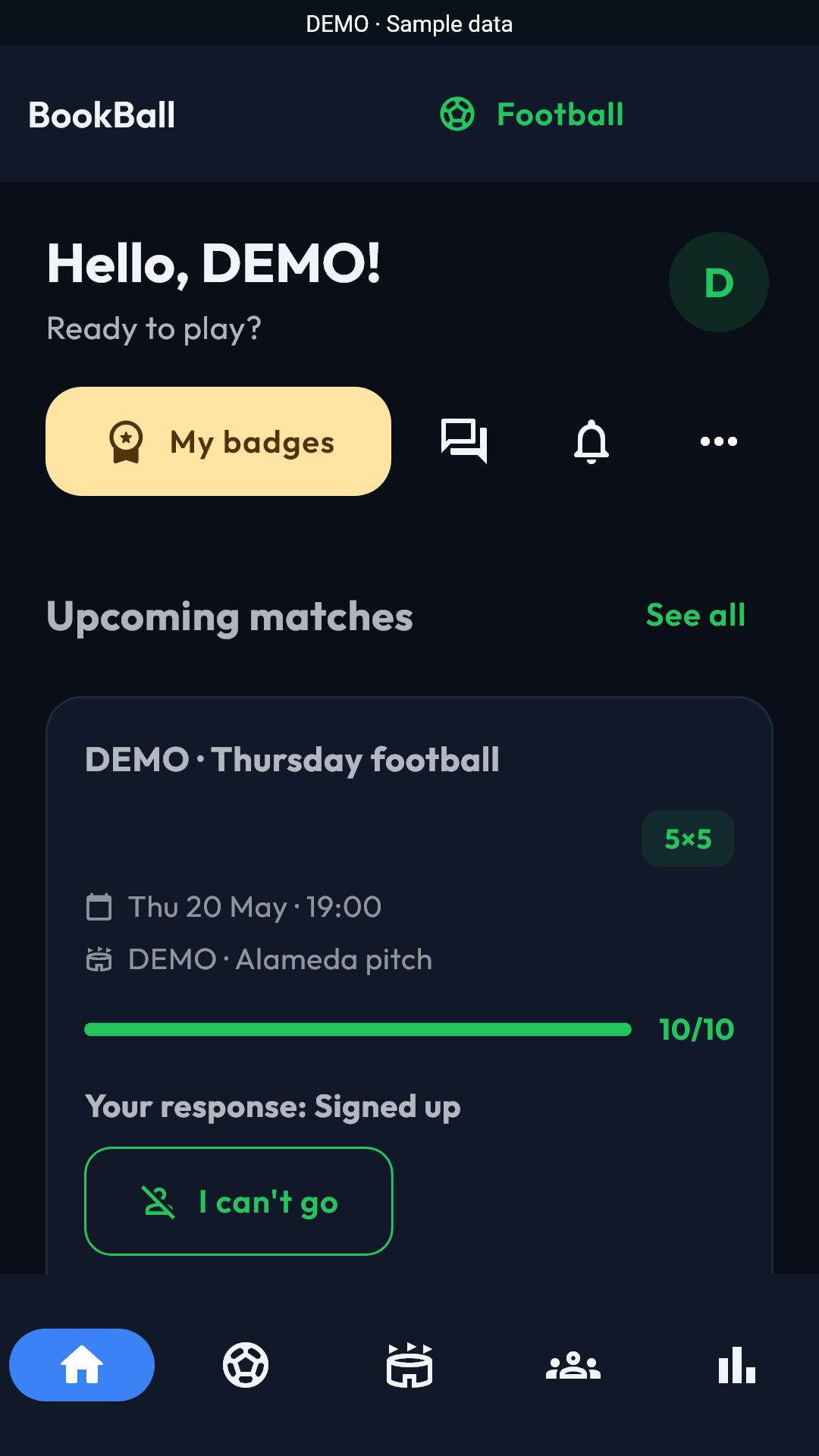
BookBallFootball Operating System
01

Getting started and your account

You can explore public matches before registering; an account is required when you want to book or manage.

  1. Choose Find a match, Organise my group or Manage a venue so the first steps match your goal.
  2. Create your account with an email, a strong password and a unique @handle. On the web you may sign in with either your email or @username.
  3. BookBall suggests the browser or country language, but you can always change it with the language selector.
  4. Edit your display name, privacy and preferences in Profile. Change your password there, or use Password recovery when you cannot sign in.
Back to contents
02

Finding matches near you

Play near me brings together open matches so you can compare all the relevant information before booking.

  1. Allow location only if you want distance sorting, or enter an area manually.
  2. Filter by date, radius, 5/7/8/11-a-side, level, gender policy, age, surface, price, position and language.
  3. Each card shows venue, time, distance, duration, availability, price, organiser, reliability and cancellation terms.
  4. Open the details to check missing positions and conditions before choosing Book a place.
Back to contents
03

Booking and attending a match

Public booking follows a traceable journey: place, payment when applicable, confirmation and attendance.

  1. Choose an available place; if the match is full, join the waiting list when it is enabled.
  2. Review amount, currency, cancellation policy and deadline before confirming or starting payment.
  3. Your place is confirmed only when BookBall says so and, for paid matches, payment has completed successfully.
  4. Check changes and venue access in the match details; cancel from the booking so the place can be released.
Back to contents
04

Groups and organisation modes

BookBall supports venue manager, captains and unattended modes, as well as quick matches without a group.

  1. In Groups, open Find groups: search by name or nearby. Check location and radius; only discoverable groups that allow access requests appear.
  2. Create a group and choose its field and mode. If the field is missing, use Add field and select it afterwards. The founder becomes the lead organiser; share an invitation or review join requests.
  3. In Captains mode, each captain independently manages their team, players, colour and line-up.
  4. In Unattended mode, a person or club publishes places and the system can create and publish teams automatically.
Back to contents
05

Call-ups, recurring series and pauses

Series avoid recreating the same match, support daily, weekly or monthly intervals, and run alerts relative to each actual match date.

  1. Set date, time, format, capacity and registration opening when creating the match.
  2. Enable recurrence, choose days, weeks or months, and configure when the next cycle is created after the current match.
  3. Pause series stops new call-ups during the pause. Cancel this match affects one date; check Cancelled to verify it and, where allowed, restore it before kick-off.
  4. Set when open-place alerts are sent and when guest players may be added.
Back to contents
06

Cancelled matches and restoration

Cancelling one match does not delete it or cancel the entire series.

  1. In Matches, switch between Upcoming, Past and Cancelled. Your personal list contains matches that affect you, not every match on the platform.
  2. Open the cancelled match and check its date, group and status. An authorised organiser can restore it only before kick-off.
  3. Restoring does not create a new series: check registration, participants and teams before notifying the group.
  4. If a cancellation notification disagrees with the detail, refresh the screen. Do not cancel again; send the exact date and message to support.
Back to contents
07

Teams, colours and line-ups

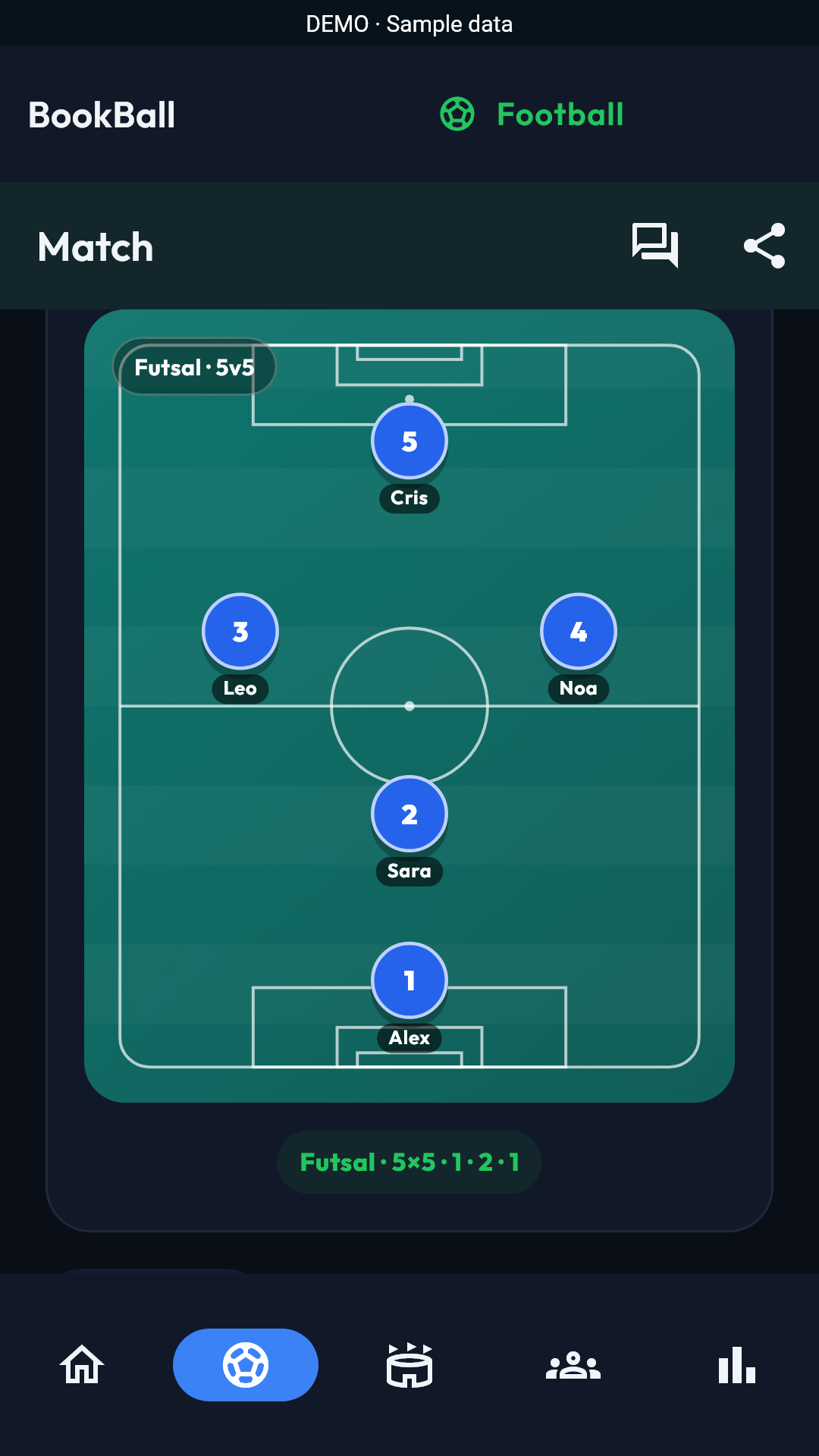
Teams may be automatic, manual or a balanced draft that a manager reviews before publication.

  1. Generate teams after the minimum and configured lead time are reached; beforehand, BookBall explains what is missing.
  2. Review the draft, positions and balance estimates. They are guidance, not a guarantee of actual winning probability.
  3. In Manager mode the responsible person chooses both colours; with captains, each controls their own.
  4. After a withdrawal, automatic allocation may rebalance teams while keeping their colours. Flexible 7–8 allows 7 a side with 14 players; an odd number shows a free place. Manual allocation needs organiser review.
Back to contents
08

Score, MVP and attendance closure

The score, MVP and attendance are separate operations with their own permissions.

  1. After the match, open View result or View or record statistics. A saved score appears on the card and at the top of the detail; a blank score does not mean 0–0.
  2. An authorised field manager or organiser can enter the score. Captains act according to mode permissions; being a player does not grant score-editing rights.
  3. Choose the MVP from statistics when authorised, and check the selection indicator after saving. Selecting MVP is different from approving a player’s statistics.
  4. Closing attendance records who attended, arrived late or was absent. An authorised organiser performs it; do not repeat an already closed attendance operation. Report required corrections.
Back to contents
09

Statistics and the 48-hour vote

Distinguish the match score, individual statistics, votes and consolidated history. Check the status and deadline shown on screen.

  1. Your player card and statistics remain visible even when you also hold a global administration role.
  2. Participants propose their own data. A manager authorised for both teams can complete everyone’s statistics; captains act on their authorised team.
  3. Review normally lasts 48 hours; check the displayed deadline. Eligible participants vote on other players’ proposals, not their own. Changed proposals need their votes reviewed again.
  4. The majority decides; with no objections the proposal is accepted by default, and missing data uses the configured team-mode rule before consolidation.
Back to contents
10

Group statistics and reliability

Open a group’s statistics section to view that group’s history.

  1. Check counted matches, wins, draws, goals for and against, clean sheets and the form of teams A and B.
  2. Rankings include goals, assists, participation, MVPs, average ratings, fouls and cards where data is available.
  3. Cancelled matches do not count as played. Data under review and unrecorded scores are not final results.
  4. Reliability reflects attendance, punctuality and behaviour with available evidence. It is not your sporting rating or a fixed reward for a win or draw; consult the scores separately.
Back to contents
11

Chats, direct messages and announcements

Communication is separated by context so every message reaches the right people.

  1. Use group chat for ongoing matters and match chat for a specific fixture.
  2. Open a player profile or message button to start a direct conversation.
  3. Today, Yesterday and date separators, together with message times, organise the history; opening it updates read state.
  4. Managers and captains can send operational notices; block or report an inappropriate conversation.
Back to contents
12

Social directory and direct messages

Find public profiles without exposing addresses, email, phone numbers or coordinates.

  1. Search by name or @nickname. Without a query, shared groups come first, then your city, province, country and the wider community.
  2. Open a profile to message, invite or recommend; each person can disable discovery or new direct messages.
  3. Blocks, suspensions and deleted accounts are enforced before results are shown or messages are sent.
  4. When another page is loaded, existing results remain visible if the connection fails temporarily.
Back to contents
13

Open-place noticeboard

The noticeboard gives visibility to positions that could not be filled by the group or its guests.

  1. The manager posts a match vacancy; in Captains mode, each captain manages places for their team.
  2. State position, level, price, deadline and conditions so the request is clear.
  3. Interested players apply, or join directly when the unattended match permits it.
  4. Close the post when filled; capacity and payment are checked again to prevent duplicates.
Back to contents
14

Add a pitch with the map

First search Fields or the field selector when creating a group. If the venue is missing, use Add field and place its actual location on OpenStreetMap.

  1. Search for the pitch or an address, use your location, or tap the map.
  2. Move the marker to the correct point and confirm; BookBall obtains the coordinates automatically.
  3. Add formats, surface, contact details and facilities only when known. Accepted photos are JPG, PNG or WebP, up to 10 MB each and 12 photos; check upload permission.
  4. User-submitted fields await review. Approved field data is protected; request an administrator correction instead of creating a duplicate.
Back to contents
15

Trust, reviews and safety

Pilot feature: reputation separates sporting ability from behaviour and reduces uncertainty when playing with new people.

  1. Check attendance, cancellations, no-shows, account age and verification for a player or organiser.
  2. Rate sporting level, behaviour, punctuality and accuracy of the listing separately.
  3. Venues show verification, surface, facilities, access, cancellation policy and reviews.
  4. Use Block to stop contact and Report to submit a case for review; contact emergency services if there is immediate danger.
Back to contents
16

Google, Apple and Outlook calendars

Export one match occurrence to Google, Apple or Outlook with its time, time zone and venue.

  1. In match details, open Add to calendar and choose a provider or download the ICS file.
  2. Accept the event in your calendar; BookBall does not gain access to your other personal events.
  3. Each export covers one occurrence; export again if it changes or you want to add another series date.
  4. If the time changes, open the update or replace the old event to avoid duplicates.
Back to contents
17

Payments, cancellations and refunds

Pilot feature subject to payment-provider configuration: per-place payments retain a status history for every operation.

  1. Check price and policy; pay through the secure checkout, never through a message or informal transfer.
  2. A Pending status does not confirm a place: wait for the result and do not retry from another tab.
  3. Cancellations within the stated deadline follow the displayed policy; bank processing may delay the refund.
  4. Keep the booking reference and contact support about duplicate charges or overdue refunds.
Back to contents
18

Venues, search and bookings

Pilot feature: the marketplace lets you discover facilities, check availability and request a time slot.

  1. Search by location, date, format, surface, price and facilities; review photos, address and verification.
  2. Choose a slot and check duration, access, equipment and cancellation policy.
  3. A request is not a booking until it shows Confirmed; the operator may suggest an alternative.
  4. Venue managers update opening hours, closures and facility details in the operator panel.
Back to contents
19

Clubs, leagues, tournaments and families

Pilot feature: organisations bring together teams, competitions and dependant profiles with clear permissions.

  1. A club can manage several teams, staff, venues and matches without mixing rosters.
  2. Leagues and tournaments manage entrants, schedules, results and standings according to their configuration.
  3. Families lets a guardian manage dependant profiles and their privacy.
  4. Grant the minimum permission required and review responsible people when the organisation changes.
Back to contents
20

Notifications and reminders

Alerts cover registration opening, missing players, changes, chat and the approaching match.

  1. Enable notifications in BookBall and device settings; allow background battery use if your manufacturer restricts it.
  2. Authorised organisers can use Send notifications to notify the group. Automatic reminders follow match configuration, state and deadlines; always check match details.
  3. Opening and missing-player alerts are calculated from the match date, including recurring series.
  4. If alerts are missing, check permissions, session, connection, battery saving and Do Not Disturb. Push delivery depends on the OS and network: BookBall cannot guarantee instant delivery or override device silence.
Back to contents
21

Privacy, security and data control

BookBall limits visible data and provides controls for discovery, access and deletion.

  1. Never share passwords, codes, API keys or card details; support will never ask for them.
  2. Choose whether your @handle appears in search and what information each group can see.
  3. Biometrics unlock credentials protected by the device. App Check verifies that the installation is genuine; BookBall stores neither your fingerprint nor face.
  4. On the website, open Cookie settings from your account menu; public pages have a cookie entry point. You can reject optional analytics. See Privacy and Delete account for other controls.
Back to contents
22

Leagues, matchdays and results

Professional football is separate from your group’s matches.

  1. Home summarises relevant results and leading teams; open Professional football for standings and the current and next matchdays.
  2. The selector lets you change the competition suggested for your country, including Spain’s first and second divisions and other available countries.
  3. Check matchday, match status and update time. Postponed matches or missing data must not be interpreted as 0–0 scores.
  4. Sources can be delayed or unavailable. Use the official results link to verify; BookBall does not guarantee real-time coverage of every competition.
Back to contents
23

Administration and analytics

Global tools are for superadministrators only; they do not grant privileges to players.

  1. On the website, Administration contains Control centre, Operations, Synchronisation and Analytics. Editing and deletion require server authorisation.
  2. Check audit records and scope before changing data. Global oversight does not make an administrator an eligible match voter.
  3. Analytics shows sessions, pages, events, activity and connection countries for the selected period. Countries are approximate, not verified personal locations.
  4. Analytics depends on consent and available data. Synchronisation reports a local check of the web copy, not the health of every remote service.
Back to contents
24

Accessibility and languages

The website supports keyboard navigation, screen readers, zoom and language preferences.

  1. Use Skip to content and navigate with Tab, Enter and Space without relying on a mouse.
  2. Increase text size or zoom; panels rearrange to preserve readable content and usable actions.
  3. Switch between Spanish, English, German, Italian, French, Portuguese and Greek with the selector.
  4. If a control is clipped or unnamed, send device, browser, scale and a screenshot to support.
Back to contents
25

Troubleshooting

Run these checks before repeating an operation or contacting support.

  1. In the app, open Profile to check the installed version; update through your official distribution channel. The PHP website and app may have different versions.
  2. When reopened, BookBall restores a valid session and returns to the correct screen. If it says the session expired, sign in again without repeating confirmed operations.
  3. For loading or permission errors, check the match state before repeating an action. If IDs replace names or a vote will not save, send the screen and version to support.
  4. If it continues, record time, version, URL or screen, action and exact message. Send screenshots to support without passwords, codes or banking data.
Back to contents
26

Help in the app and support

The manual and FAQs are public and updated on the website.

  1. In Profile, open BookBall help or Frequently asked questions. The header’s help icon remains available even if the profile fails to load.
  2. The sign-in screen also provides help without signing in. Links open in your browser in the app’s language.
  3. Android, iOS and Firebase web share these links once the update is installed or deployed. The links do not install or update the app themselves.
  4. If the browser cannot open, copy the link from the error message. Include the Profile version when contacting support; never share passwords or codes.
Back to contents
Quick answers

Frequently asked questions

Common questions about places, roles, payments, safety and how a match operates.

Can I view matches without creating an account?

Yes. You can explore public matches and their essential details. You need an account to book, pay, chat or manage.

How do I book an open match?

Open Play near me, select a match, review its terms and choose Book a place. Complete payment when required and wait for confirmation.

What happens if I cancel?

The policy and deadline shown before booking apply. The place is released and, when eligible, a refund starts to the original payment method.

What happens if the minimum is not reached?

The match remains pending until the configured deadline. The organiser may post vacancies, invite guests, reschedule or cancel under the published terms.

How does flexible 7/8-a-side work?

With 14 people the match is viable as 7-a-side but keeps two vacancies while aiming for 8-a-side. If nobody else joins, it is played 7 versus 7.

What is the difference between owner, manager and captain?

The owner controls configuration and can appoint assistants. Managers act within their permissions. Each captain manages only their team unless granted more access.

Can I add somebody without an account?

Yes, when the mode and deadline permit it. They are added as a guest; registration is required for all personal features.

How do I stop a series during a holiday?

Use Pause series and set the interval. Cancel this fixture affects only that date and preserves future recurrence.

Why does Generate teams not act yet?

BookBall requires the player minimum and configured lead time. The screen shows the missing condition; the manager can create a draft once it is met.

Who enters and approves statistics?

Each participant proposes their data and authorised people can correct it. Players vote for 48 hours; the majority decides and unchallenged data is accepted at closure.

What if somebody does not submit statistics?

When the window closes, the most frequent value in their team is applied if that rule is enabled, with a record that it was automatic.

Why am I not receiving notifications?

Check BookBall and system or browser permissions, session, battery saving and Do Not Disturb. The inbox and match detail let you verify changes even if push fails; immediate delivery is not guaranteed.

Can I use Google Calendar, Apple Calendar or Outlook?

Yes. From each match you can open a compatible provider or download an ICS. There is no automatic series subscription; export again after a change or to add another occurrence.

Does BookBall store my card details?

No. Sensitive information is entered in the payment provider. BookBall retains only references and statuses required for booking and support.

How is reliability calculated?

Player reliability uses attendance, punctuality and behaviour, adjusted to the amount of evidence. It is not the sporting rating or just the match result; do not treat limited history as a definitive assessment.

What is the difference between blocking and reporting?

Blocking prevents direct contact. Reporting sends a contextual case for review. You may do both when necessary.

How do I message a player directly?

Select their profile in search, a group, match or line-up and choose Message. Only profiles that allow contact and are not blocked appear.

Is a venue request already a booking?

No. It is guaranteed only when marked Confirmed. Before that it may remain pending or receive an alternative from the operator.

How are minors and multi-team clubs managed?

Minors use dependant profiles managed by a guardian. Clubs keep teams, rosters and permissions separate within one organisation.

Can I sign in to the website with my @username?

Yes. On the website enter either your email or @username and your existing BookBall password. Do not create another account if you already use the app.

What happens when I close and reopen BookBall?

BookBall automatically restores a session that is still valid and opens the relevant private screen. If the session expired or was revoked, it asks you to sign in again.

What does “BookBall could not verify this installation” mean?

Installation verification could not complete. Update from the official channel and check connection, date and device services. Do not disable protections or share codes; send the exact message to support if it persists.

How do I change or recover my password?

While signed in, open Profile and choose Change password. If you cannot sign in, use Password recovery on the sign-in screen and follow the link sent by email.

How do I recover my password or delete my account?

Use Recover password on the sign-in screen and follow the email link before it expires. To close your account, open Delete account and complete identity verification.

What is created when I add a group?

BookBall atomically creates the group, the founder's active membership as owner and their statistics record. If anything fails, it leaves no incomplete group and does not duplicate it when the same request is retried.

Do I still appear as a player if I am a super administrator?

Yes. Your player card and sports statistics are independent of the global role. You may supervise the platform, but you can vote only on statistics for matches you played; accepted proposals feed the consolidated history.

Why can I not find a registered friend?

Search for their exact @nickname and check that their profile is discoverable, accepts contact and neither person has blocked the other. Shared-group contacts appear first.

Do I need to know the pitch latitude and longitude?

No. Search for the venue or tap OpenStreetMap, adjust the marker and BookBall will store the coordinates for you.

Why is a match missing from Cancelled?

Check your account, that the match affects you, and the correct group and date. Refresh the list. If still missing, send these details and the app version to support; do not create a duplicate match.

Can a cancelled match be restored?

Yes. An authorised organiser can use Reactivate before kick-off. After that time this workflow does not allow it. Check the restored state before confirming attendance again.

Who enters the result and other players’ statistics?

Authorised match organisers enter the score; managers of both teams can complete everyone’s statistics. Captains are limited to their authorised team. Ordinary players propose their own data.

Why will my vote or experience review not save?

Check that you participated and review is still open. Statistical votes require another player’s current proposal; experience reviews require valid attendance. Ask the organiser to review incorrect attendance, not to invent attendance.

Can I add a field while creating a group?

Yes. Use Add field if it is absent, locate it on the map and select it afterwards. Avoid duplicates; adding a field is not a venue booking or administrative approval.

What happens if a player withdraws after teams are allocated?

Automatic allocation may rebalance teams and show a free place; 14 players in flexible 7–8 means 7 a side. Check the updated teams. In manual mode organisers must review them.

Where is help in Android, iPhone and Firebase web?

In Profile and on the sign-in screen, open BookBall help or Frequently asked questions. Links use the app language and need no website sign-in. Check the installed version if they are missing.

Where can I change analytics consent?

On the signed-in website, open your account menu and Cookie settings. Public pages have a cookie entry point. Rejecting optional analytics does not prevent access to help.

Human support

Do you still need help?

Include your @nickname, group and exact match date, installed version, device and error message. Never send passwords, login codes or private keys.

Contact support